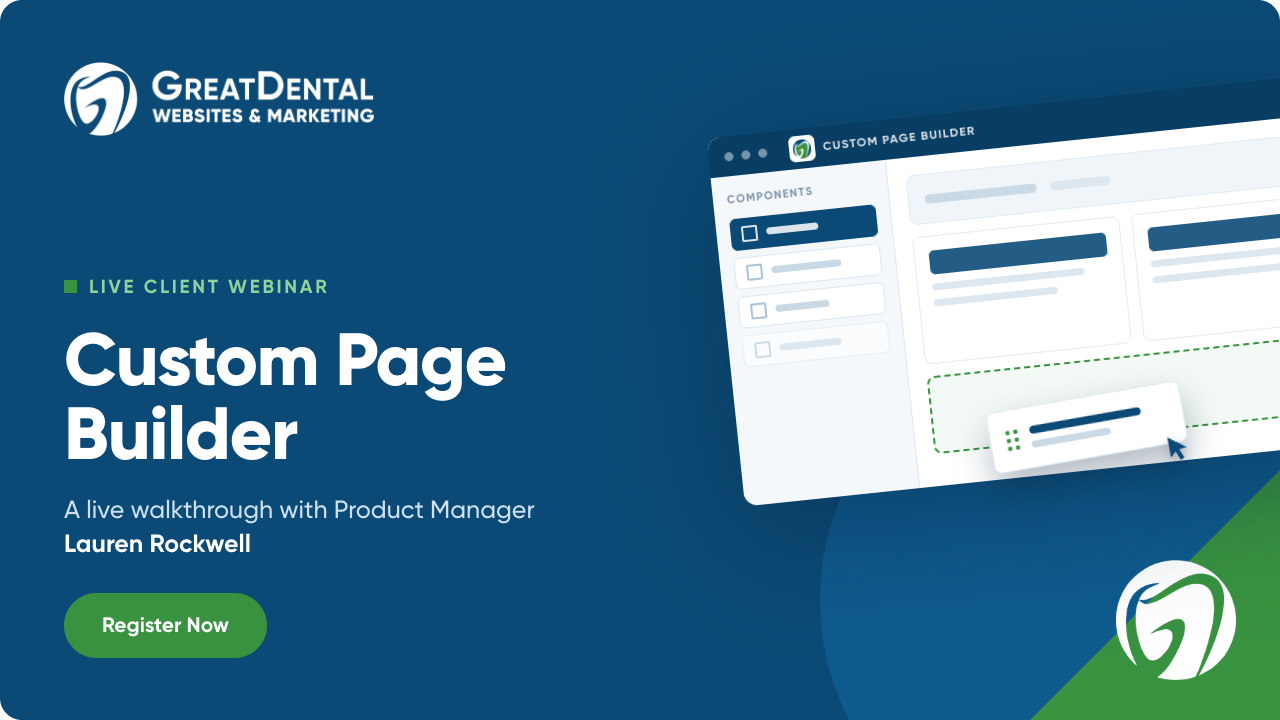
Introducing the Custom Page Builder!
Your GDW website can now do even more.
Our new Custom Page Builder gives you the freedom to create standalone pages for your practice whenever you need them, without coding, design experience, or a lengthy development process.
Whether you want to promote a membership plan, create a careers page, highlight a community event, build a patient resource hub, or add content for a specific service or location, you now have the tools to bring that page to life.
Build the Page Your Practice Needs
The Custom Page Builder works like a blank canvas inside your GDW admin dashboard.
Simply drag and drop the components you need, including a range of pre-built components designed to help you structure and enhance your page.
Each component is clearly labeled, making it easy to see how your page is structured and make updates as you go.
You can save your work as a draft, publish it when it is ready, or archive pages you no longer need.
See the Custom Page Builder in Action
See how quickly you can turn a blank page into a polished, useful addition to your website.
Join our Product Manager, Lauren, as she walks through the Custom Page Builder, showing you how to add and arrange page components, upload images, customize your page settings, and publish your work.
More Updates You’ll Notice
Along with the Custom Page Builder, we’ve also rolled out a series of improvements across your GDW experience to make managing your website faster, clearer, and more intuitive. Everything is designed to help you get more done with less effort. Here’s what’s new:
Your Images, All in One Place
A new built-in image library lets you upload, organize, and reuse your practice photos, team images, and brand assets anytime you build a page. You can also choose from stock images when needed.
Built for Search Visibility
Every custom page includes SEO-friendly tools like custom URLs, index settings, and schema support. Pages are also added to your llms.txt file to help AI platforms better understand your content.
A New Dashboard When You Log In
Your updated dashboard gives you a clearer view of website activity, including live custom pages, recent leads, performance data, and older blog posts that may need refreshing.
Join Our Live Webinar:
Custom Page Builder Walkthrough with GDW
Join GDW Product Manager Lauren Rockwell for a live walkthrough of the new Custom Page Builder and updated dashboard.
Lauren will demonstrate how to create and publish a page, share ideas for what your practice can build, and answer questions.
Service Page Update Walkthroughs
Download any of the walkthroughs below to learn exactly how to get your new service pages patient-ready!
How to Add a New Service Page
Learn how to create a new service page from scratch and start customizing it to your specifications.
See How It's Done
Create and Sort Content Blocks
Learn how to break up the existing writing on your site with content blocks.
See How It's Done
Customize Your Banner and Buttons
Learn how to fully customize your service page banner layout and button designs.
See How It's Done
Sorting Related Content Blocks
Learn how to reorder related content on your website.
See How It's DoneFrequently Asked Questions
Explore our FAQs to find answers to common questions about our recent service page update.
If you can't find what you're looking for, please contact our support team. We're always happy to assist you!
Related content refers to items pulled in from other pages of your website. These include your staff bios, smile gallery images, testimonials, specials, FAQs, technology items, and blog posts.
This related content can be sorted and displayed in a predetermined order on your service pages. This gives you the flexibility to create unique layouts, such as having new content blocks with paragraphs of text and related content displayed in between. For example, you could have an intro paragraph on teeth whitening and then a smile gallery case. Next up would be another paragraph of text explaining the teeth whitening process, followed by a testimonial, and so on down the page.
To sort the order of your related content, navigate to your Global Service Page Styles and scroll to the Related Content Sort Order section (Click on one of your service pages > Appearance > Global Service Page Styles). Then, simply drag and drop to determine the order of related content, as it will display on your service pages.
Think of site content blocks as paragraphs of text. Currently, we have one large text area for all of the writing on your service page. These new content blocks break that writing up into smaller sections.
These smaller sections will have related content in between to keep patients reading as they scroll down the page.
The service pages are the first on our platform that we have updated. So, they are the only page on your website with the new styles. However, we are going through one at a time and applying the same styles and updates to all other internal pages!
Up next will be the About page, followed by the Smile Gallery.
No! This update (along with all future updates) is included in your platform subscription cost. We pride ourselves on consistently making updates to our website platform that are free of charge to our users.
You can leave your service pages as-is if you do not want to update them. When the new pages are launched, the front end of your pages will not look any different. The back-end editor will change, but you will have to manually update your settings before they look any different, so no worries if you don’t want a change quite yet.
Questions About the Update? Contact Our Support Team!
Do you have a question or need assistance with updating your service page? Submit a form here, and a team member will be in touch with you in a flash! Remember, the more we know, the better we can help you. So don't be shy— let the details fly!
For more guidance, you can also watch the recorded video above to learn how to update your service pages.